Guides
Players
8 min read · Updated August 13, 2026
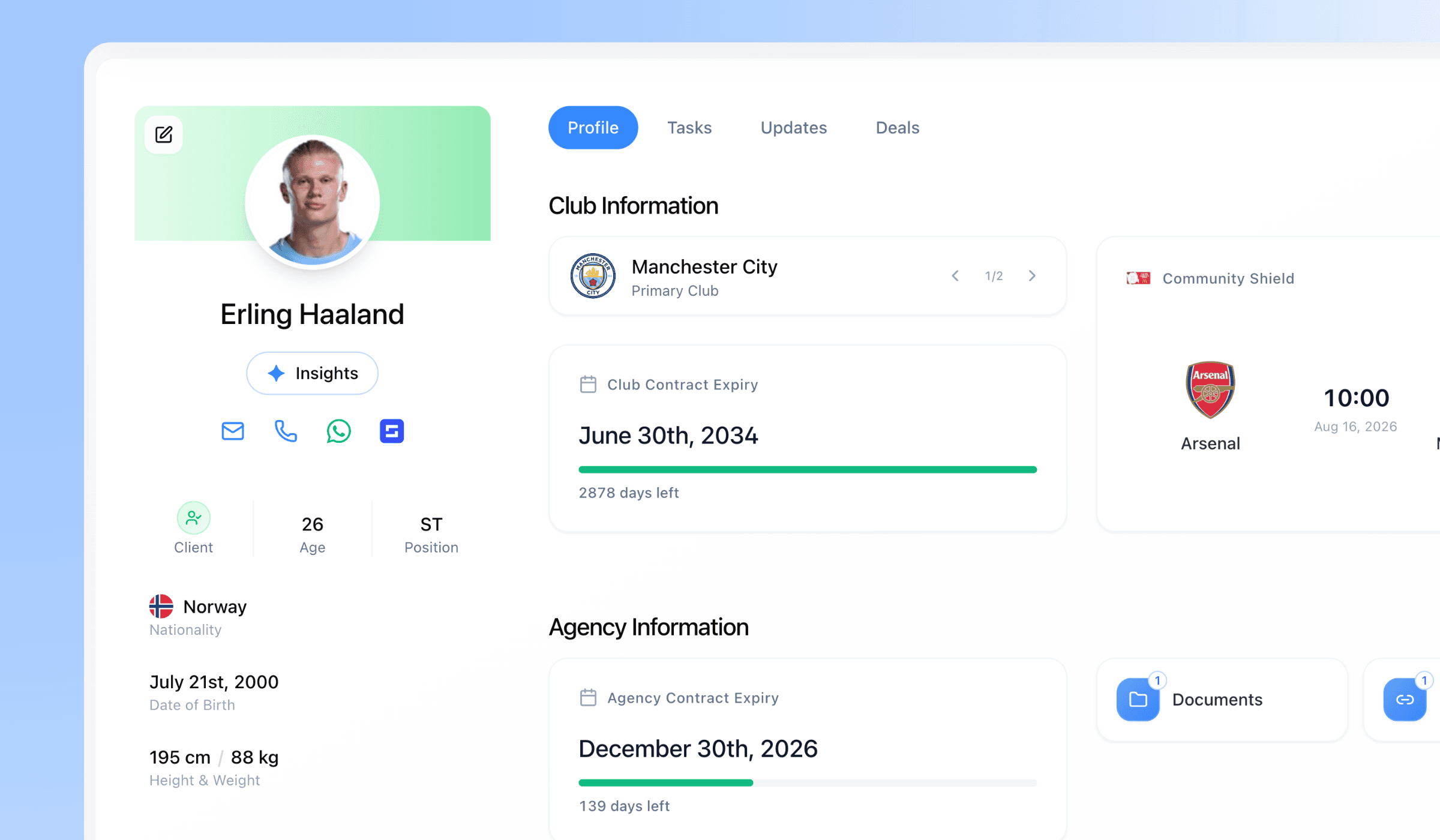
Your roster lives here. Add a player once, and everything else in Athlivo — lists, share links, tasks, deals and reminders — hangs off that profile.
The Players page is the record your whole agency works from. See Player Management for the shorter overview.
Adding a player
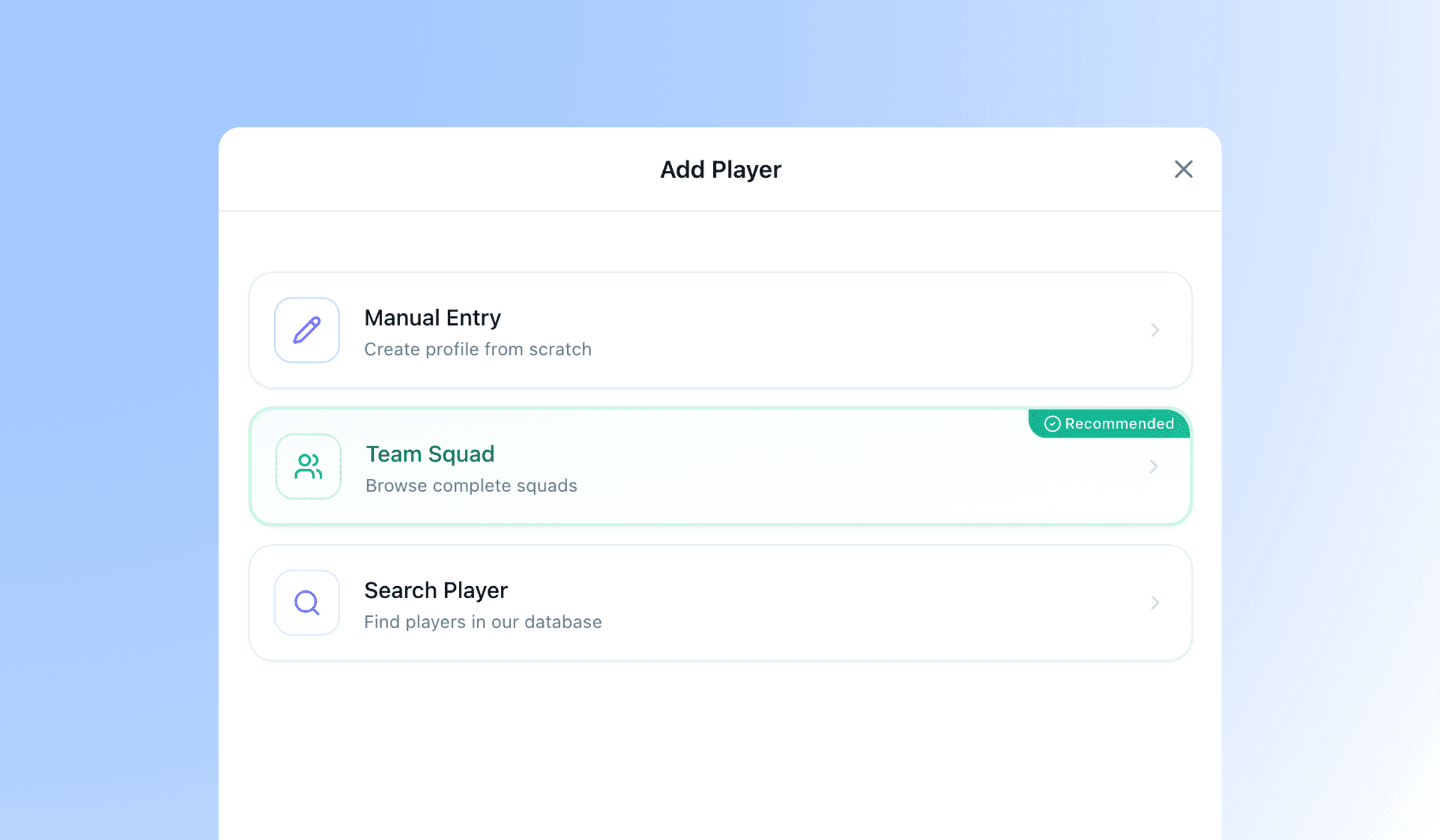
Choose Add Player and pick one of three ways in:
- Search the player database
- The fastest route. Type a name, pick the right player from the results, and Athlivo imports them with their club, nationality, position, date of birth and physical details already filled in.
- Import from a team squad
- Best when you're working through a club rather than chasing one name. Search for a club, browse its full squad, and pull in the players you want. Useful for building out a shortlist of everyone at a given club.
- Manual entry
- For players who aren't in the database — youth players, players from smaller leagues, or anyone you want to record your own way. You fill in the details yourself.
After an import you may briefly see “Importing…” on the player. ATHLIVO is fetching their club and squad details in the background. It usually takes a few seconds and you can carry on working.
Keeping club data current
Player clubs and national-team call-ups change constantly. Athlivo refreshes them for you:
- Free plan: team assignments update automatically every week.
- Paid plans: select players in the table and choose Refresh to update their clubs and national teams on demand.
A player can be refreshed once every 24 hours.
Your player limit
| Plan | Players |
|---|---|
| Free | 25 |
| Plus | 150 |
| Pro | 350 |
| Elite | Unlimited |
If you go over your allowance — after a downgrade, for example — nothing is deleted. Your oldest players stay fully editable; the rest become view-only until you're back within your plan. You'll still see them in the table.
See plans and pricing for the full comparison.
The players table
The table shows your whole agency's roster. Use the Agent filter to narrow it to your own players, another agent's, or the ones nobody has picked up yet.
Three ways to look at it.
| View | What it's for |
|---|---|
| Table | The full spreadsheet — every column, sortable, searchable |
| Stage | A drag-and-drop board grouped by where each player sits in your pipeline |
| Strategy | The same board, grouped by your transfer strategy instead |
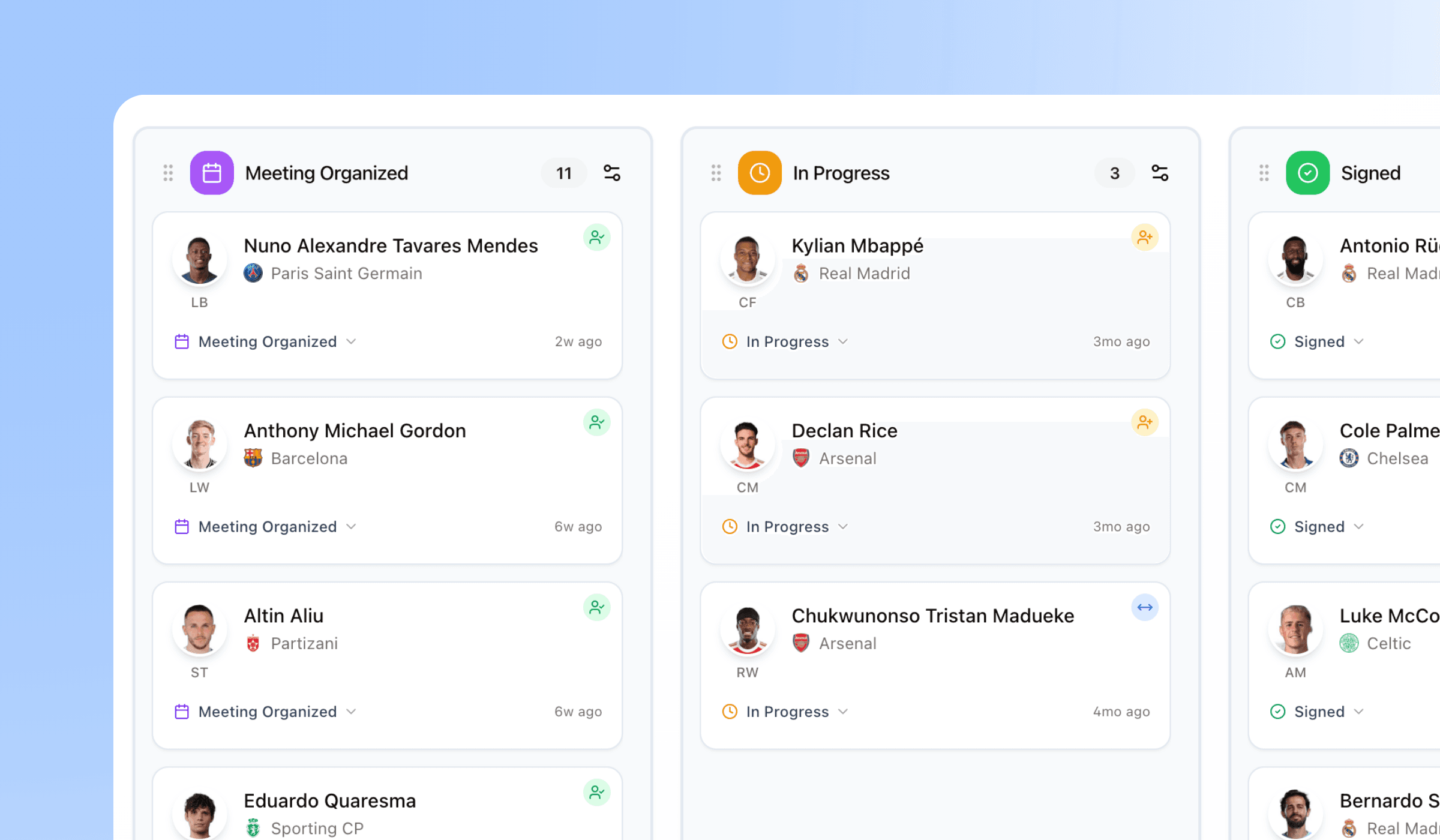
On the board views, drag a player card between columns to move them. You control the columns yourself — add, rename, recolour, reorder or remove them to match how your agency actually works. Choose Manage on either board to edit them. A column that still has players in it can't be deleted until you move them out.
Columns in the table. Name, club, age, nationality, position, status, agent, stage, strategy, club contract, agency contract, and links. Drag column headers to reorder them, and sort by clicking a sortable header. Your arrangement is remembered.
Editing without leaving the table
Most cells edit in place — click and change it. That covers age, nationality, position, preferred foot, height and weight, client status, stage, strategy, the assigned agent, club, and both contract dates. There's no save button; changes apply immediately.
Client status is one of three:
- Signed Client
- A player you represent.
- Prospect
- A potential client.
- Mandated
- A player you hold a mandate for.
Contract reminders
Next to a contract expiry date you'll find a bell. Set it to be reminded a chosen number of days before that contract runs out. The bell shows whether a reminder is active.
Search and filters
Search by name at any time. The filter panel narrows by:
- Agent — including unassigned, and your own players
- Position — broad categories or detailed positions
- Client status
- Club and club country
- Agency contract and club contract — expiring within 90 days, already expired, no contract on file, or by specific year
The player profile
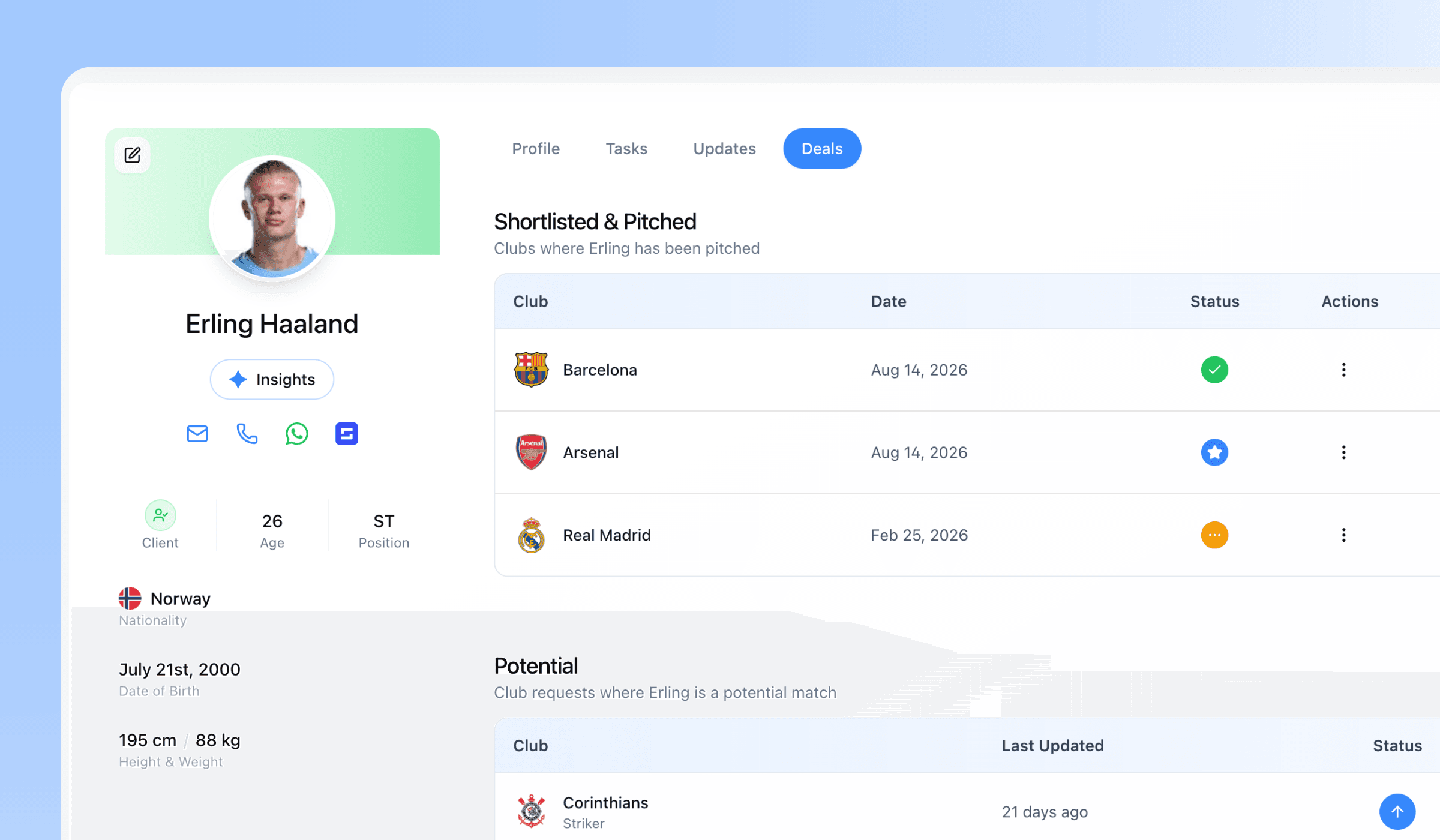
Open any player for their full record. It's organised into tabs, and the first of them — Profile — is the main record, in two halves:
- Club Information
- Current club or clubs (a player on loan or a dual contract can carry several), national team, club contract expiry, and their physical and playing details: date of birth and age, nationality (up to two), position and detailed position, preferred foot, height and weight.
- Agency Information
- The side only your agency sees: client status, the agent responsible, pipeline stage, transfer strategy, and your agency contract expiry.
To change anything, switch the profile into edit mode. Fields save as you go.
Links and documents
Links. Attach a player's profile links — Transfermarkt, BeSoccer, Sofascore, Instagram, YouTube, or any other URL. Give each one a title so you know what it is.
Pinning matters
A pinned link appears in the Links column on your table, and pinned links are the ones shared with clubs when you send a list. Unpinned links stay internal.
When you open a player's Links you'll see whether they're currently visible on any public share links, and how many — so you know the reach before you pin something new.
Documents. Upload contracts, ID, insurance, medical records and anything else, and classify each file by type. You can search, rename, download and delete them.
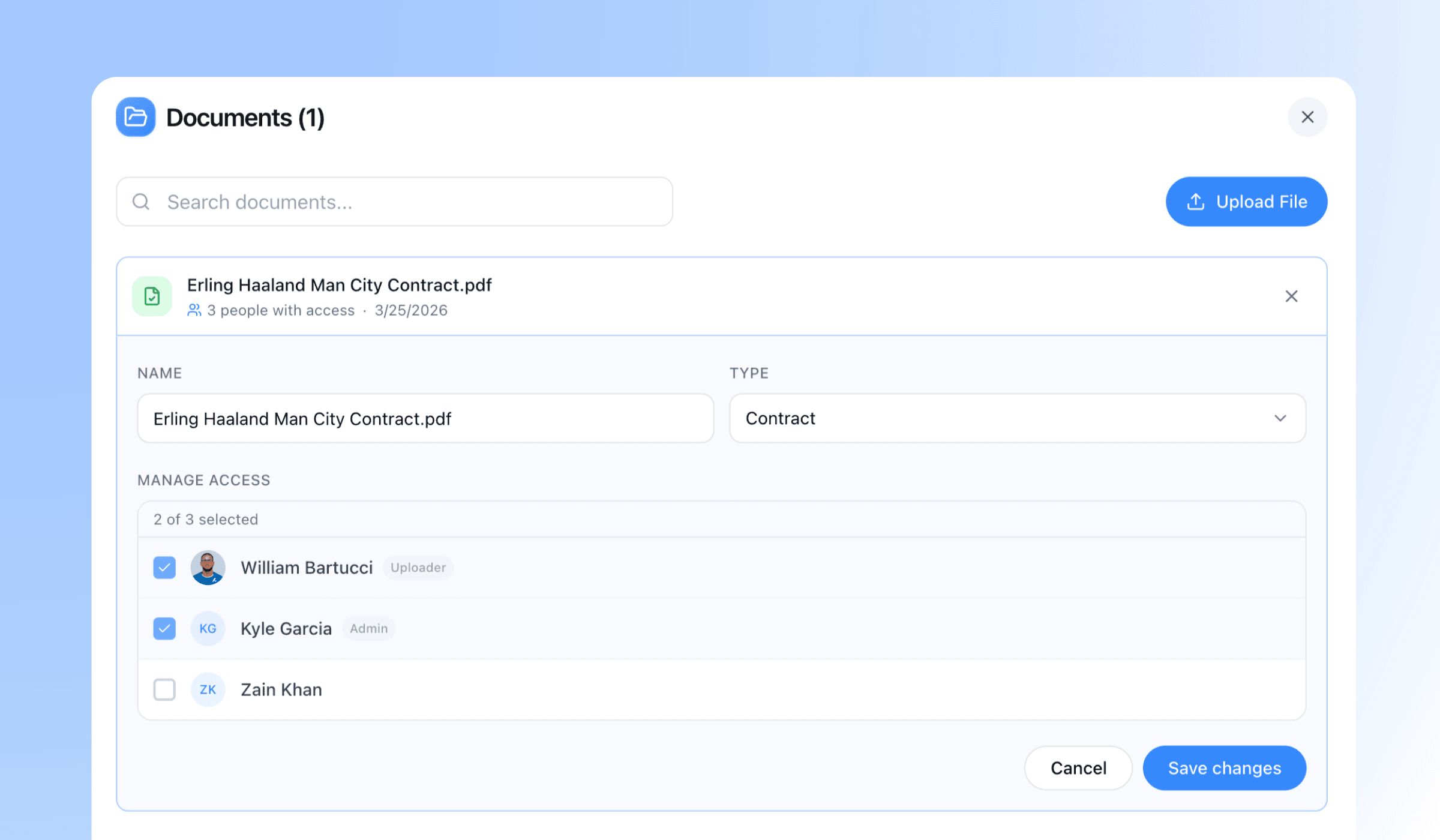
Documents are private to admins by default. Share an individual document with specific colleagues, or with your whole organisation, when you want them to have it.
Availability
Document uploads are available on Plus, Pro and Elite.
The rest of the profile
- Agents
- Assign the agent responsible for a player, and manage that assignment over time. A player can also sit unassigned — they'll show up under the Unassigned filter so nobody falls through the cracks.
- Tasks
- Everything outstanding for this player, created and completed without leaving the profile.
- Updates
- Your running notes — calls, conversations, scouting observations, anything worth remembering. Each update is timestamped and can be edited or deleted later. This is the internal record of the relationship, and it's never shared with clubs.
- Deals — Shortlisted & Pitched
- Track where you've pitched the player and which clubs have shortlisted them, so you can see the state of play at a glance and follow up. See Club Requests.
AI Insights
Ask about a player and get a written answer. There are quick prompts for the questions that come up most:
- Player info
- Playing style, strengths and technical ability
- Recent news
- Nationality and eligibility
- Transfer history
- Agency information
- Contract information
- Injury record
- Market value
See AI Insights for how the answers are sourced.
Quick answers
Try it on your own roster
Free for 14 days, no card needed. Questions about anything on this page? Email us and a real person will answer.