Guides
Lists & Share Links
9 min read · Updated August 17, 2026
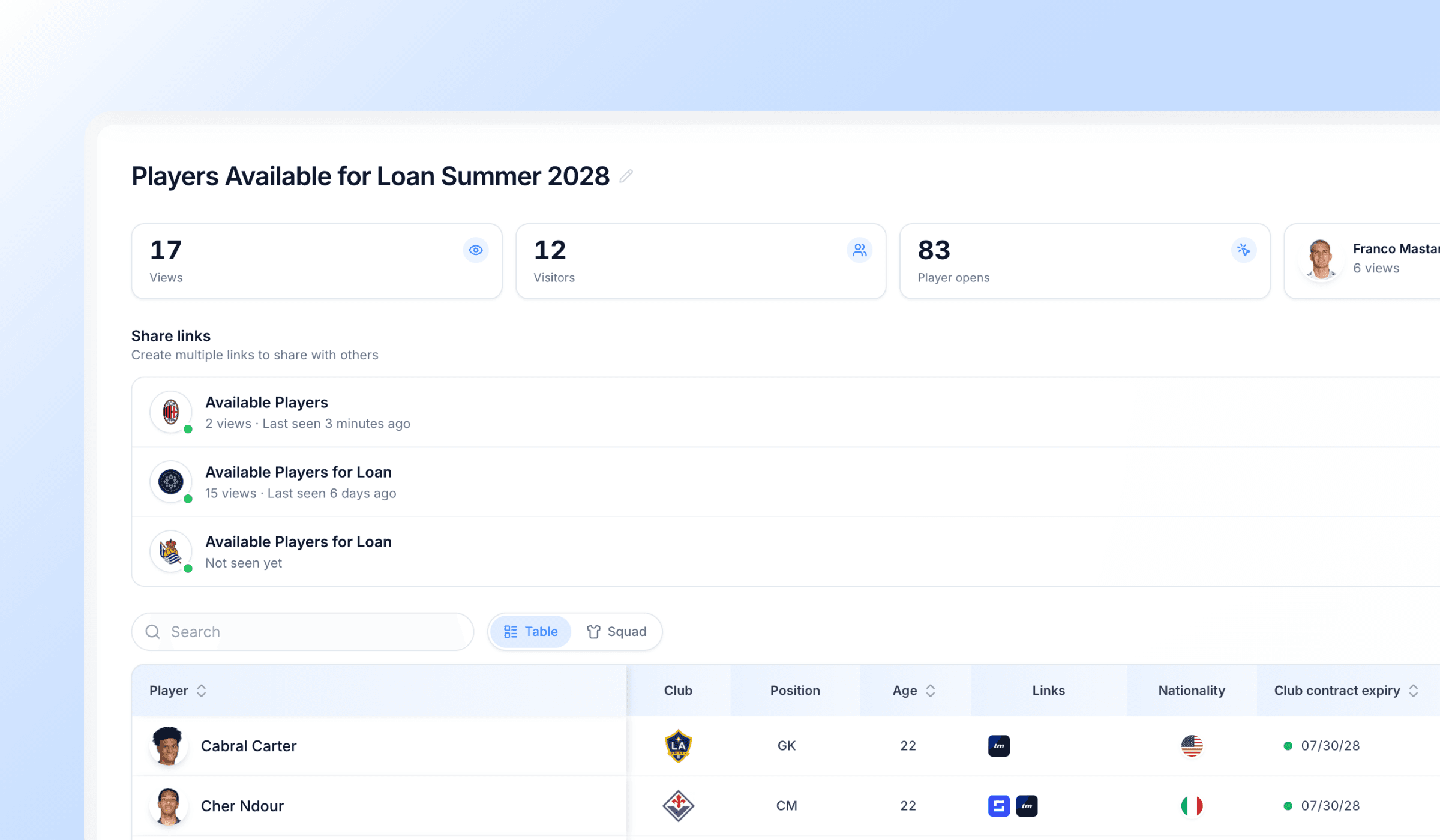
Share a squad list with a club through a private link — no PDF, no attachment, and no account needed on their side. You choose exactly what they see, and you can see what they looked at.
Lists are built on top of the roster you already keep in Player Management, so nothing has to be re-entered or exported to send it out.
What a list is
A list is a group of players from your roster, saved under a name only you and your agency can see.
From a list you create share links — one per club you want to send it to. Each link has its own web address, its own name, its own on/off switch, and its own view history.
The list is the original; the links are windows onto it. If you add a player or change which details are shown, every link you've already sent updates the next time it's opened. You don't need to resend anything.
Creating a list
- From the Players page
- Select the players you want, then choose Add to list. You can start a new list from that selection or add them to a list you already have.
- From the Lists page
- Choose New list and pick your players inside.
Either way you'll go through two quick steps:
- 01
Choose the players
Search and filter your roster exactly as you do on the Players page, including filtering to just the players you represent.
- 02
Choose the columns
Tick which details clubs will see, and drag them into the order you want.
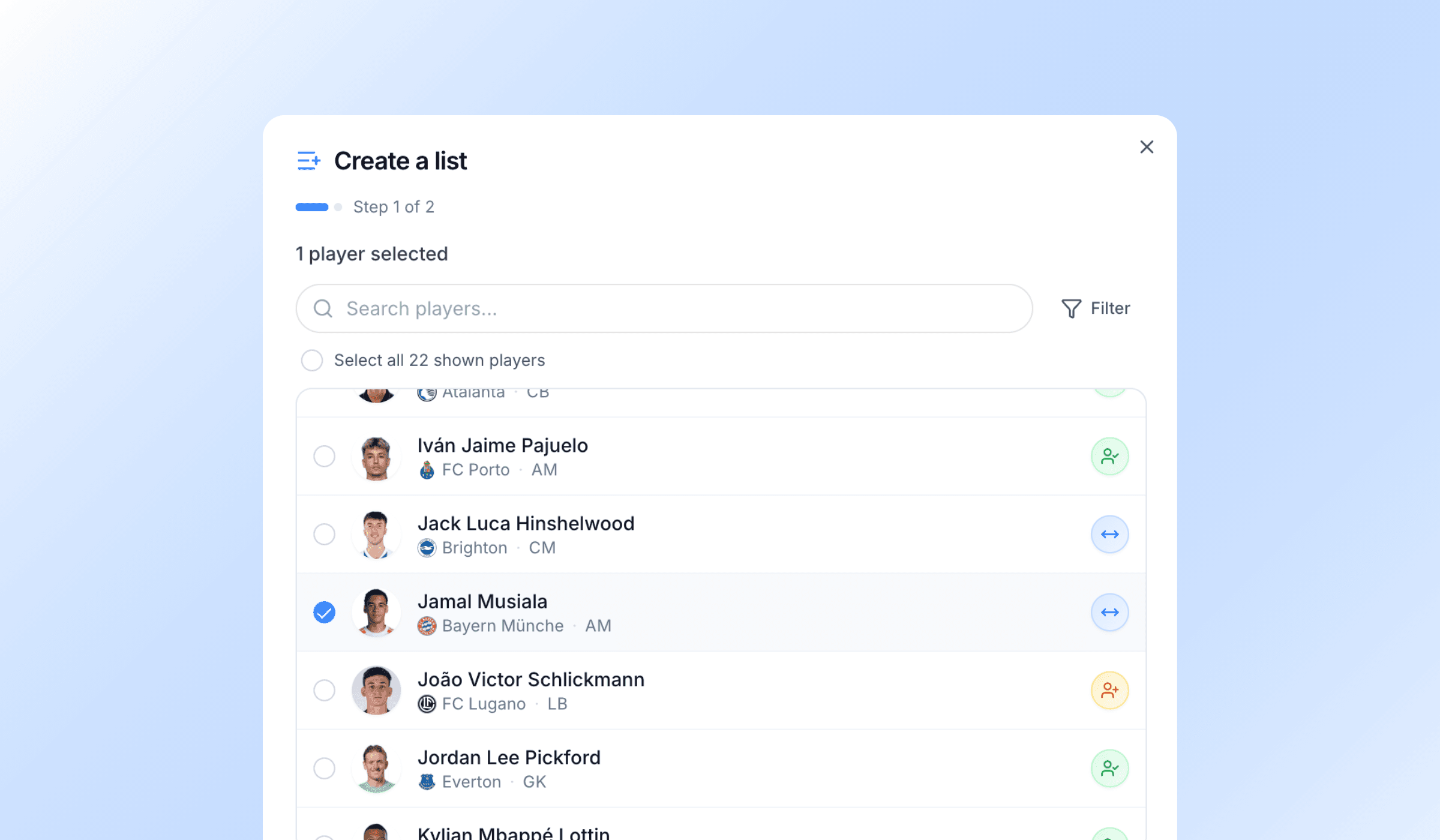
Your list gets a name automatically, and you can rename it as soon as it opens. That name is internal — clubs never see it — so feel free to be blunt: “Summer 26 RBs — shortlist B”.
Limit
Up to 500 players on one list.
Choosing what clubs see
On the list, open the column picker to choose what appears for every player:
- Club (including loan and dual contracts)
- Age and date of birth
- Nationality
- Position
- Club contract expiry
- Preferred foot
- Height
- Weight
- Profile links
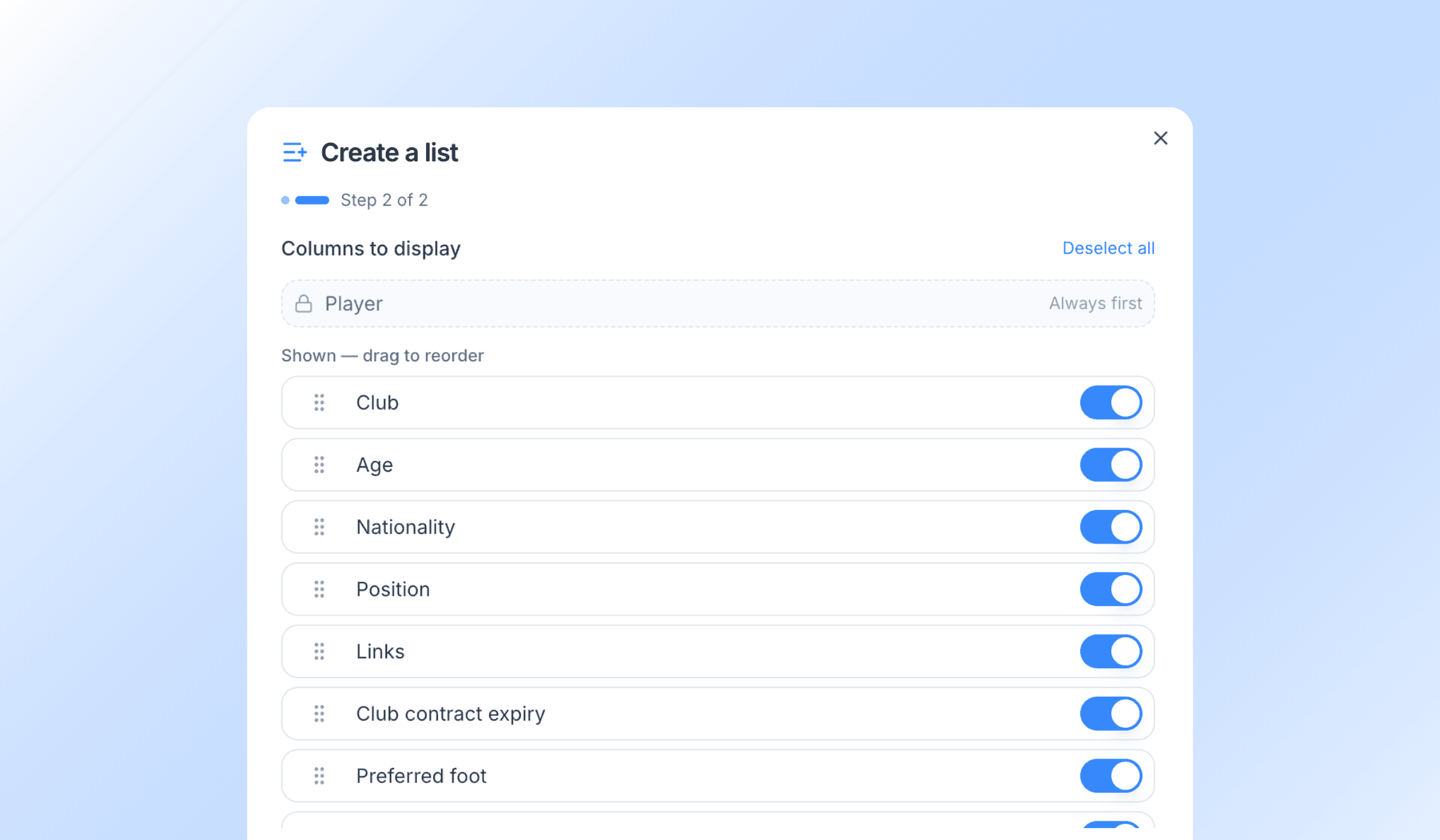
A player's name and photo are always shown. Everything else is your choice.
Anything you switch off is not sent to the club at all — it isn't hidden on the page, it never leaves Athlivo.
Profile links
Only links you've pinned on a player are shared. Pinning is the single control — what you see in the Links column on your Players table is exactly what a club gets. Unpinned links are never shared.
Changing the columns affects every link on that list, including ones you sent weeks ago. That's usually what you want, but it's worth knowing before you widen a list that's already out.
Ranking the players
The players on a list sit in an order you control. On your list, choose Reorder, drag the players into the order you want, and choose Done.
Reordering is a mode of its own — no search, no filters, no column sorting. The rows on screen are the list, top to bottom, so a drop means exactly what it looks like.
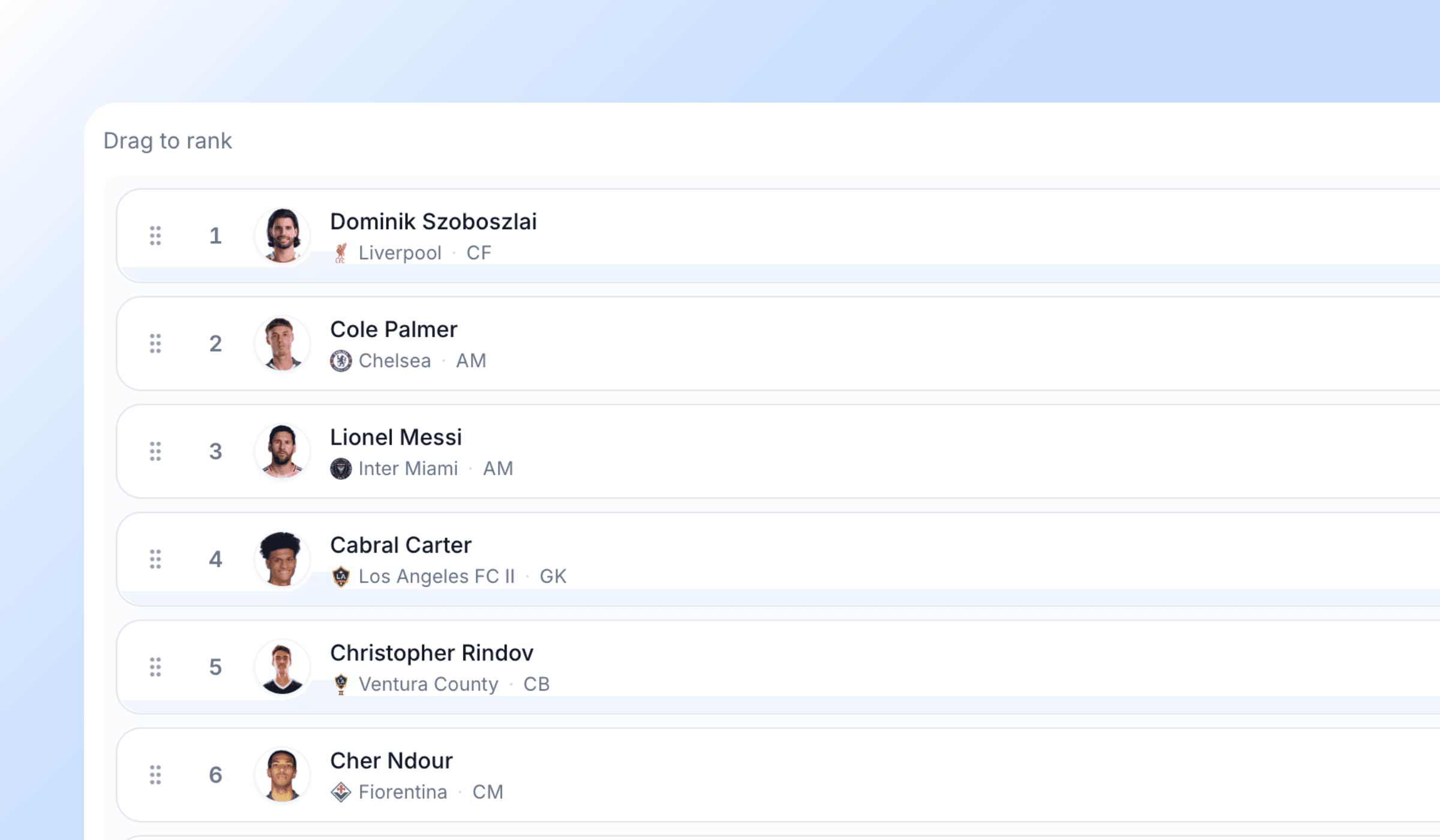
Where the order shows up. It travels with every link on the list:
- The table
- The club's page opens in your order rather than alphabetically. They can still sort by a column header if they want to — and cycling that sort back off returns the table to your ranking.
- The squad view
- Players cluster onto the pitch by position, and each cluster keeps your order. Where a position holds more players than the pitch can show as faces, the rest collapse behind a +n — so whoever you ranked first at that position is the one the club actually sees.
Why it's worth doing. An unranked list is just a set of names in whatever order they were added, which asks the club to work out for themselves who you're really pitching. Ranking is your recommendation, delivered inside the list — no covering message needed, and nothing lost when the link gets forwarded to someone who never read your email.
It also decides what gets attention. The top of a table is read hardest, and on the pitch the leading name in each cluster is the face on show. Put your strongest fit for that club first and the rest in the order you'd talk them through.
The club is never shown a rank number, and Athlivo never labels anyone as first choice. The order is a running order, not a scoreboard — if you want it read as a ranking, say so in the link's name.
The order lives on the list, so it's the same for every club you've sent it to. Players you add later join at the bottom — reorder once you've finished adding.
One order, all links. If you want a different running order for a different club, duplicate the list and rank the copy.
Sharing with a club
On your list, open Links and choose Create link.
Give the link a name — this is what the club sees as the heading on their page, and it's how views are attributed back to them. Use the club or the person: “Genoa CFC — Sporting Director”. You can also tag an existing club from your Teams so their badge appears on the link.
Then Copy the link and send it however you already talk to that club — WhatsApp, email, iMessage, LinkedIn. The link previews properly in all of them, showing your agency name and the link's title.
Create one link per club. It costs nothing and it's the only way to tell who looked at what.
What the club sees. They open the link on any device, with no login and no app:
- Your agency logo and name at the top
- The name you gave the link
- Your players in the order you ranked them, as a table or a squad pitch, with search and filters
- Tapping a player opens their full profile card
- The page is available in English, French and Spanish
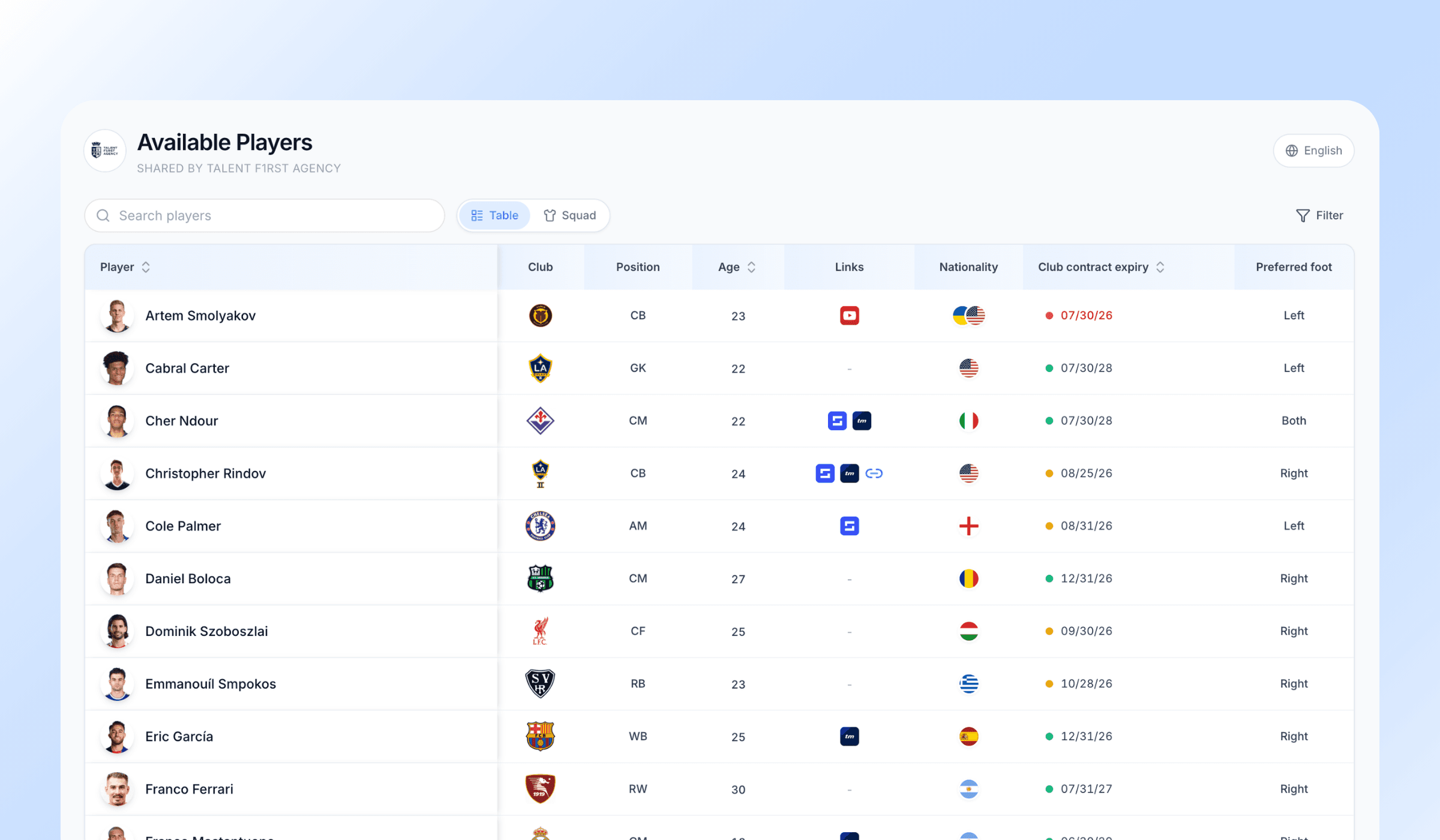
The page isn't indexed by search engines and can't be found without the link.
Seeing who looked
Your list shows four figures at a glance:
| Views | How many times your links were opened |
| Visitors | How many separate people opened them |
| Player opens | How many times a player's profile was opened |
| Most opened | Which players drew the most attention — page through the full ranking |
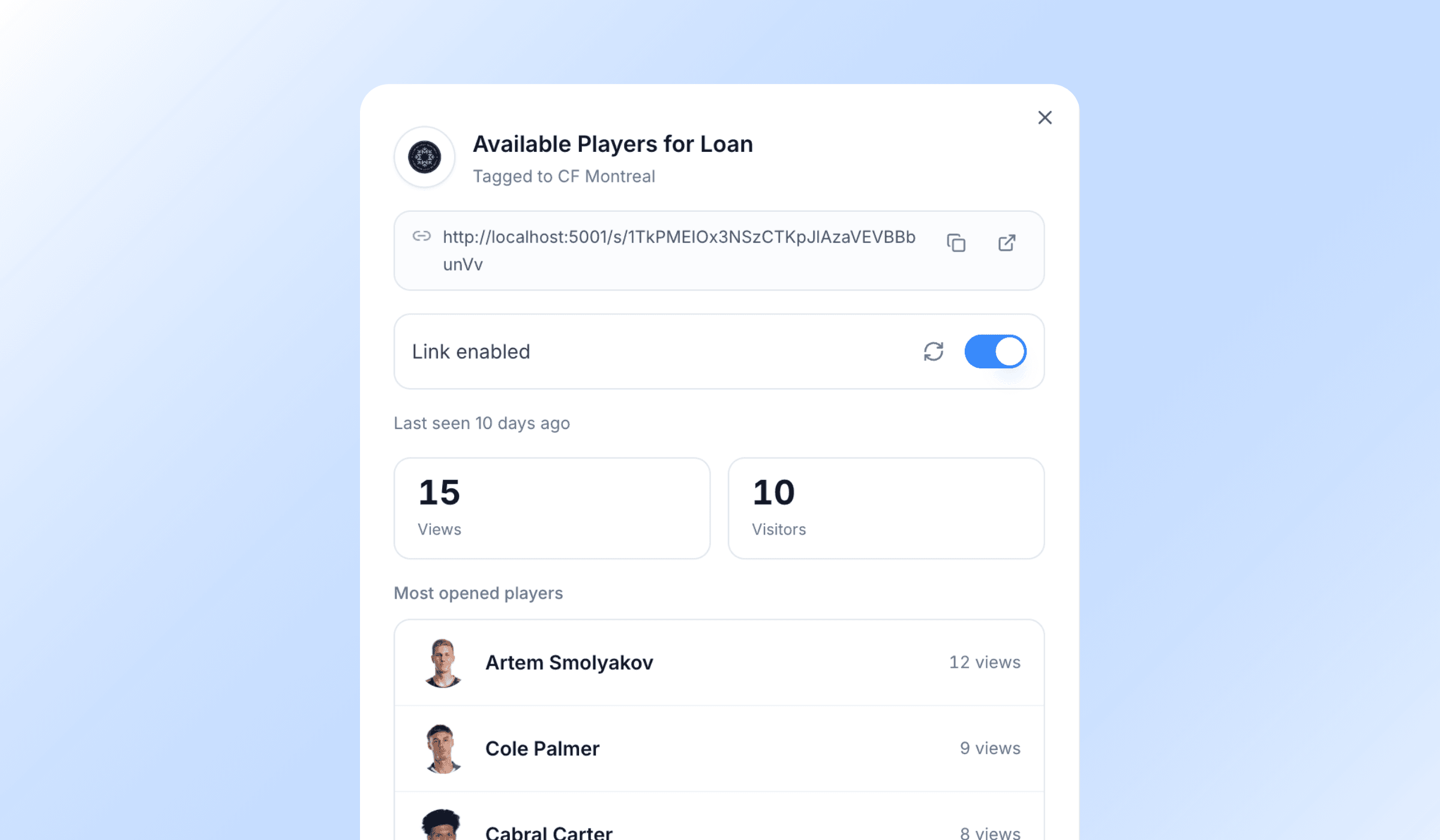
Open any individual link to see its own numbers: when it was first and last opened, how many visitors, and which players that particular club looked at. That's the difference one link per club buys you.
You'll also get a notification the first time a club opens a link, so you know when to follow up.
Why the numbers look the way they do.
“I opened it three times but it says one view.”
Views count sittings, not page loads. Reloading, going back and forward, or returning to the tab within about half an hour all count as the same visit. That's deliberate — a club refreshing five times should read as one interested club, not five.
“I opened my own link and didn't get a notification.”
Opening your own link never notifies you. It does still add a view, so previewing a link will nudge your view count.
“The club opened it twice today and I only got one notification.”
You get one alert per link per day. Every individual visit still shows in the analytics — the alert just doesn't repeat. If you sent the same list to eight clubs, you'll still hear separately about each of the eight.
“A player I removed still shows in the ranking.”
Their history stays, because it's still true. They just aren't on the list any more.
You can turn share-link notifications off in Settings → Notifications.
Managing access
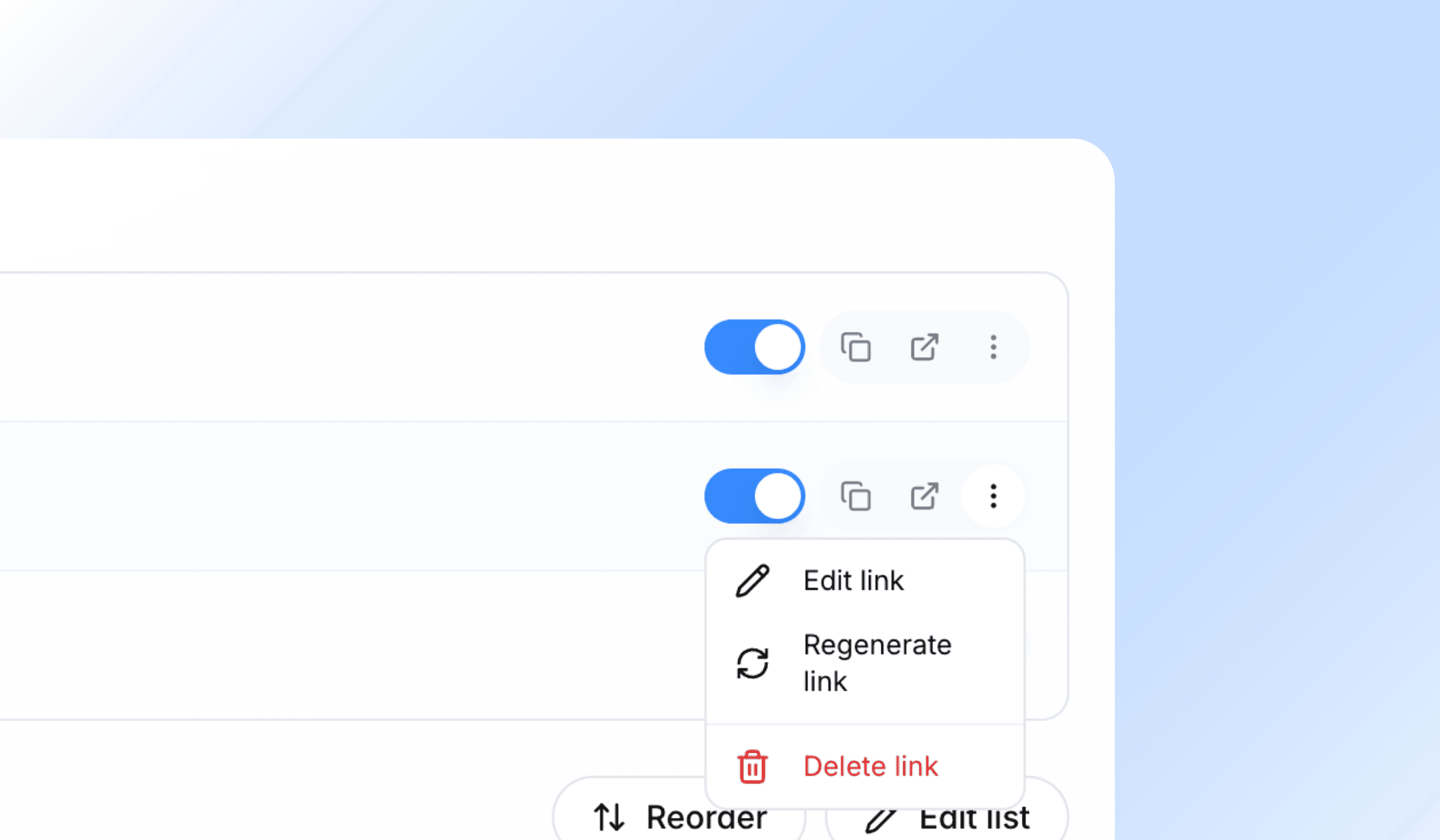
Each link has its own controls:
- Switch it off
- The link stops working immediately. Anyone who opens it sees a generic “not available” page that gives nothing away. Switch it back on at any time.
- Regenerate
- Creates a brand new web address and kills the old one, while keeping the link's name and all its history. Use this when a link has been forwarded somewhere you didn't intend. You keep your analytics; the old address stops working.
- Edit
- Rename the recipient or change the club badge.
- Delete
- Removes the link and its history for good.
Deleting a list removes all of its links and all of their analytics, and any link you've sent stops working. Removing a player from a list takes them off every link immediately.
Duplicating a list copies the players in their current order, the description and the column choices — but not the links. A copy has never been sent to anyone, so it starts clean, and you can re-rank it for a different club.
What clubs can never see
Some things are never shareable, whatever your column settings:
- Your agency contract / mandate expiry
- Client status and pipeline stage
- The agent responsible for the player
- Transfer strategy
- Player contact details
- Your internal notes
These aren't switched off by default — they can't be switched on. A share link only ever carries information about the player as a footballer, never about your relationship with them.
If you want to check a player's exposure before you pin a new link to them, open that player's Links and Athlivo will tell you how many live share links currently show their pinned links.
Plan limits
| Plan | Lists | Active links |
|---|---|---|
| Free | 3 | 3 |
| Plus | 15 | Unlimited |
| Pro | Unlimited | Unlimited |
| Elite | Unlimited | Unlimited |
If you go over your allowance — after a downgrade, for example — nothing is deleted. Your oldest lists stay fully editable and the rest become view-only: you can still read them, copy links, switch links off, regenerate and delete, but not add players or change columns until you're back within your plan.
Links you've already sent keep working. A club holding one of your links is never cut off because of a change to your subscription.
See plans and pricing for the full comparison.
Quick answers
Try it on your own roster
Free for 14 days, no card needed. Questions about anything on this page? Email us and a real person will answer.