Guides
Club Requests
8 min read · Updated August 13, 2026
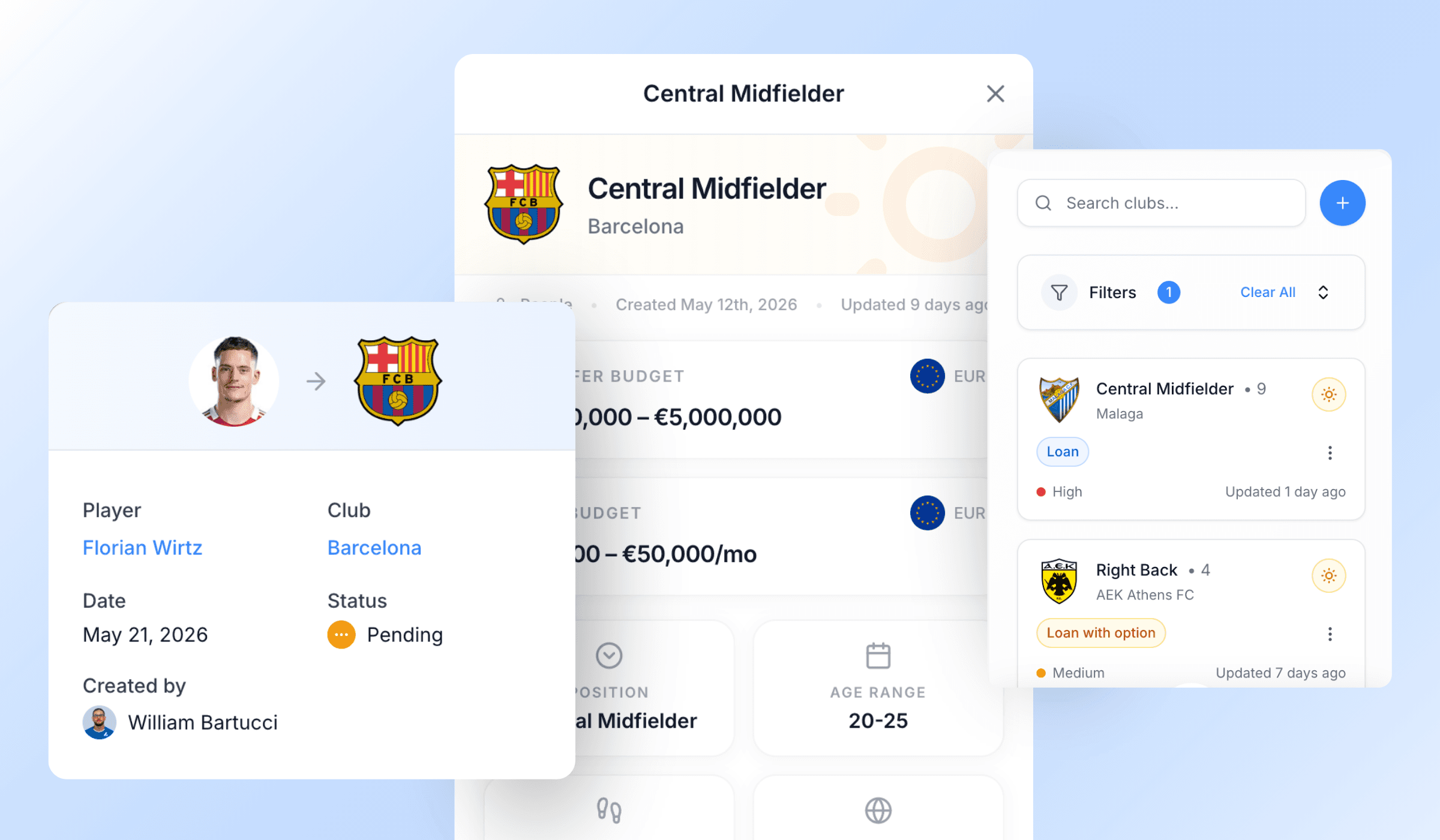
Record what a club is looking for, and Athlivo tells you which of your players fit. Instead of keeping a sporting director's brief in a WhatsApp thread or your head, it becomes a live record you can filter, work through, and pitch against.
Requests match against the roster you keep in Players, so the brief and the players it fits stay in the same place.
What a club request is
One request = one club looking for one type of player.
Genoa want a left-footed centre back, 22–27, international, up to €2m, summer window. That's a request. A club chasing three positions is three requests, so each one can be worked and tracked separately.
As soon as you save it, Athlivo links the players from your roster who fit the brief.
Adding a request
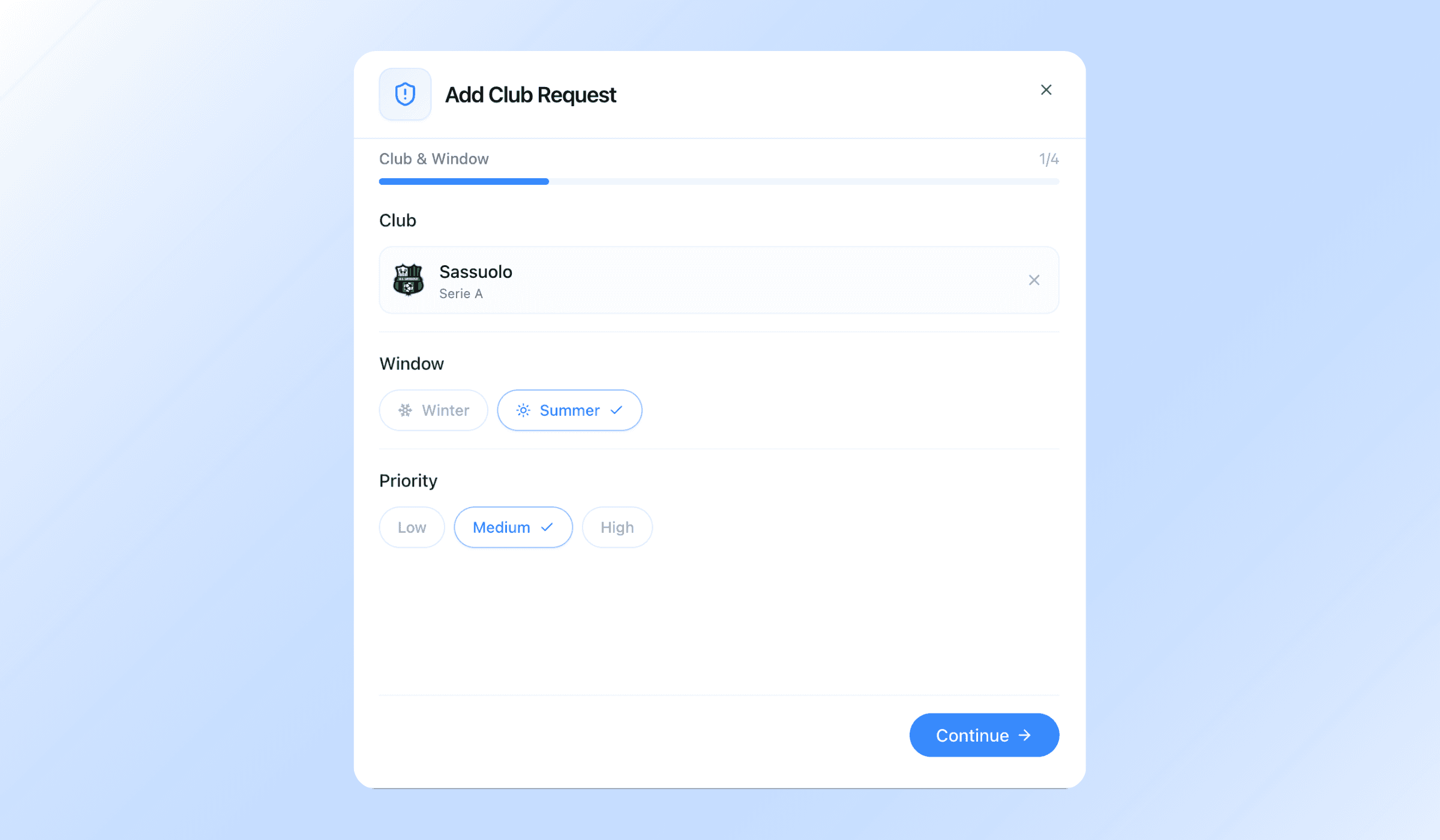
Choose Add Request and work through four short steps.
- 01
Club & window
Which club is asking, whether it's the summer or winter window, and how urgent it is — High, Medium or Low priority.
- 02
Player profile
The brief itself: position, age range, preferred foot and player origin.
- 03
Deal & budget
The deal types they'd consider, their transfer and wage budgets, and the currency those are in.
- 04
Notes & contact
Free-text notes, the contact at the club this came from, and the colleagues you want assigned to work it. Assigned users get notified.
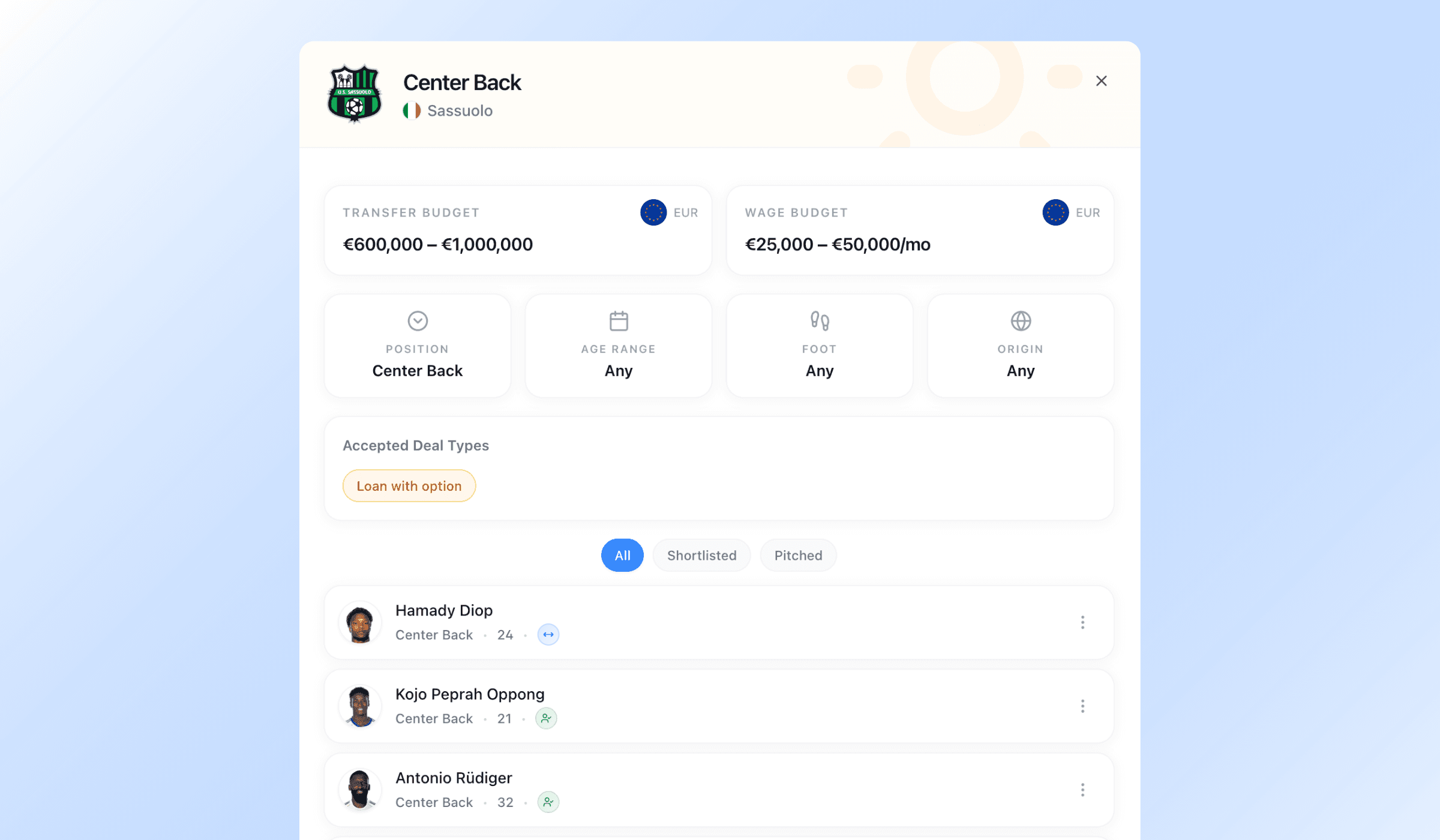
The player profile step is the brief itself:
- Position — one detailed position (centre back, defensive midfielder, striker, and so on)
- Age range — minimum and maximum
- Preferred foot — left, right, or any
- Player origin — domestic, international, or any. Domestic means the same nationality as the club's country; international means anything else
Deal & budget covers the commercial side:
- Deal types they'd consider — free transfer, loan, loan with option, permanent transfer. Pick as many as apply
- Transfer budget — a minimum, a maximum, or both
- Wage budget — a range, set monthly or yearly
- Currency — EUR, USD, GBP or CAD
Leave anything you don't know blank. A request with only a position and an age range is still useful, and you can fill in the rest later.
Tip
To record a second position for the same club, open a request's menu and choose Duplicate — everything carries over and you just change the position.
How matching works
Athlivo automatically links players from your roster to a request on three criteria:
- Position group — a request for a centre back matches your defenders
- Age — inside the range you set
- Origin — domestic or international, measured against the club's country
Matched players are split into two groups:
- Exact matches
- The player's detailed position is precisely what was asked for. A request for a winger treats both right and left wingers as exact.
- Loose matches
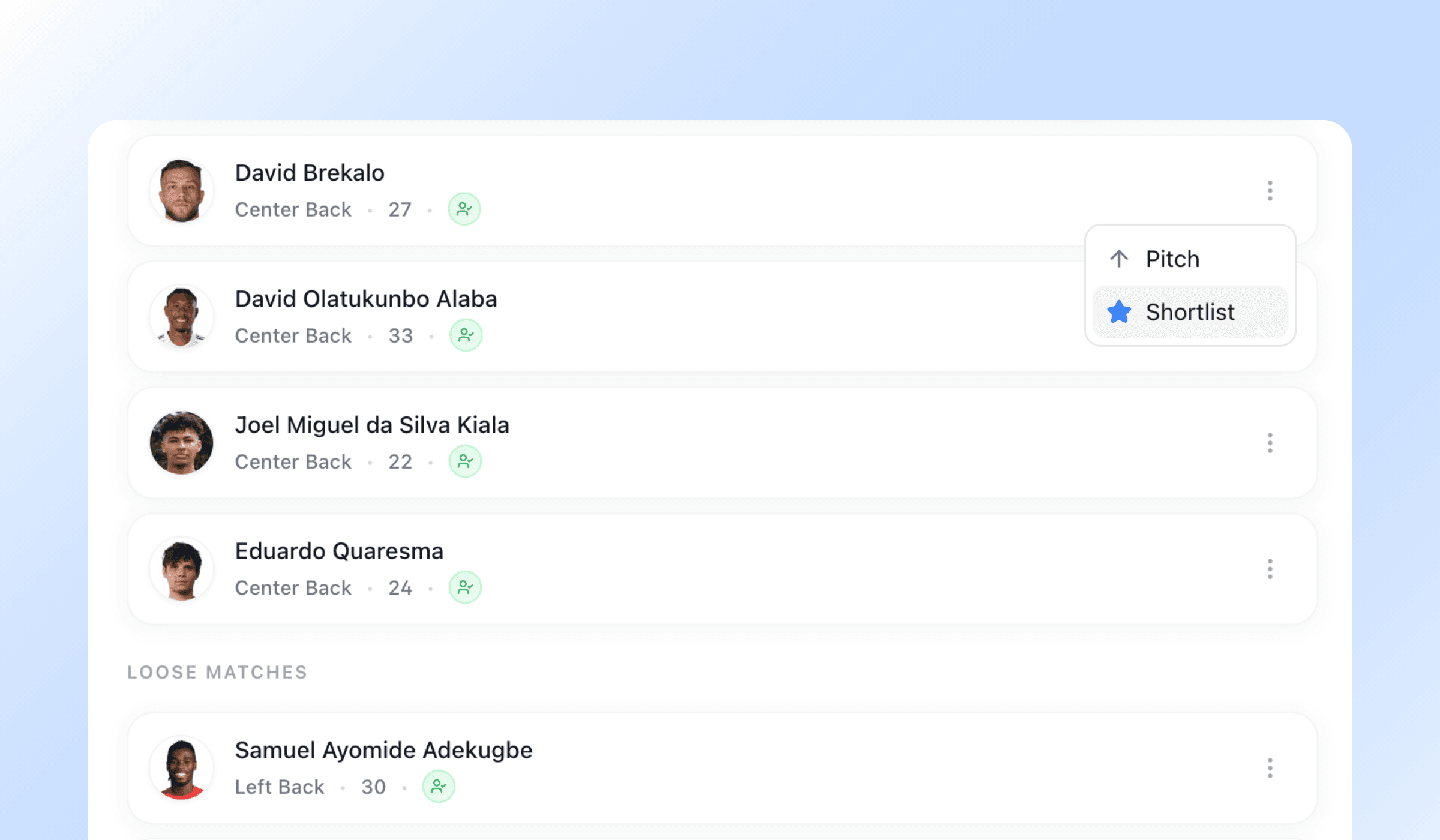
- The right position group, but a different detailed role — a centre back showing under a request for a right back.
Loose matches are shown deliberately. The player who solves the brief often isn't the literal job title.
Matching stays current by itself. Add a player, or change their position, age or nationality, and their links are recalculated — they'll appear on requests they now fit and drop off ones they no longer do.
Foot, budget and deal type are not used for matching. They're part of the brief you read and judge against, not filters that hide players. A brilliant fit who's the wrong foot is still worth seeing.
The requests table
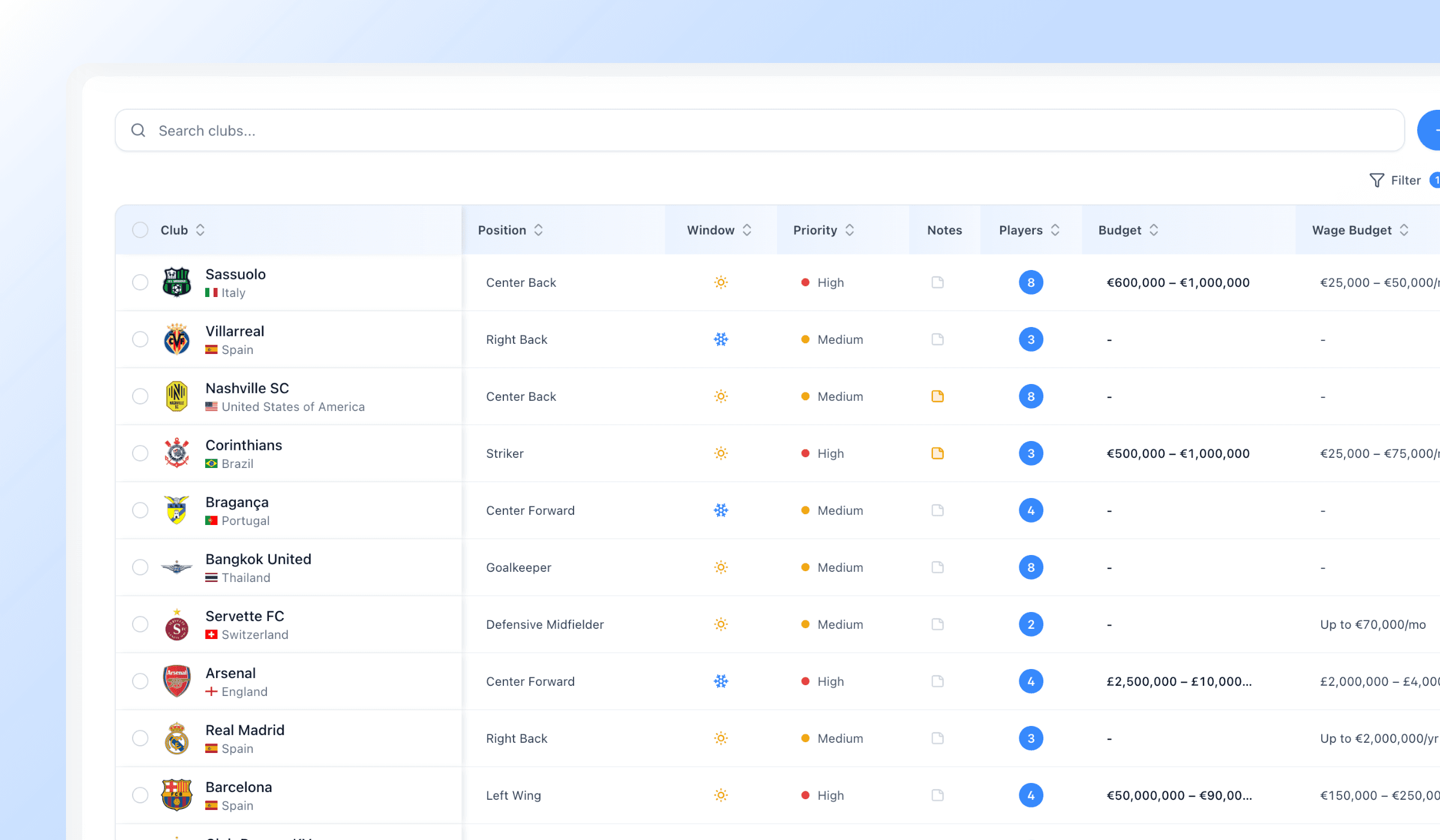
Every request your agency has recorded, in one table.
Columns. Club, position, window, notes, matched players, transfer budget, wage budget, deal types, age range, origin, foot, assigned, and last updated. Sort by any of them.
Editing in place. Most fields change directly in the table — club, position, window, priority, budgets, deal types, age range, origin, foot, assignees and notes. No need to reopen the form.
Search by club or position at any time, and filter by:
- Status — active or archived
- Position — broad groups or detailed positions
- Transfer window
- Priority
- Player origin
- Deal type
- Club country
- Assignee, including unassigned
Doing several at once. Select requests and:
- Archive or restore
- Move them out of your active view, or bring them back.
- Export to PDF
- Turn the selection into a document you can send or print — see Exporting to PDF below.
- Delete
- Remove them permanently.
Exporting to PDF
Sometimes you need the requests on paper — a window summary for a partner agency, something to take into a meeting, or a record for your own files.
- 01
Select the requests
Tick the requests you want. Filter and search first if you're after a particular window, position or club country — you can then select what's in front of you.
- 02
Choose the columns
Pick exactly which columns the document carries. Anything you leave out never reaches the file.
- 03
Share or save
Generate the PDF, then send it on or keep it.
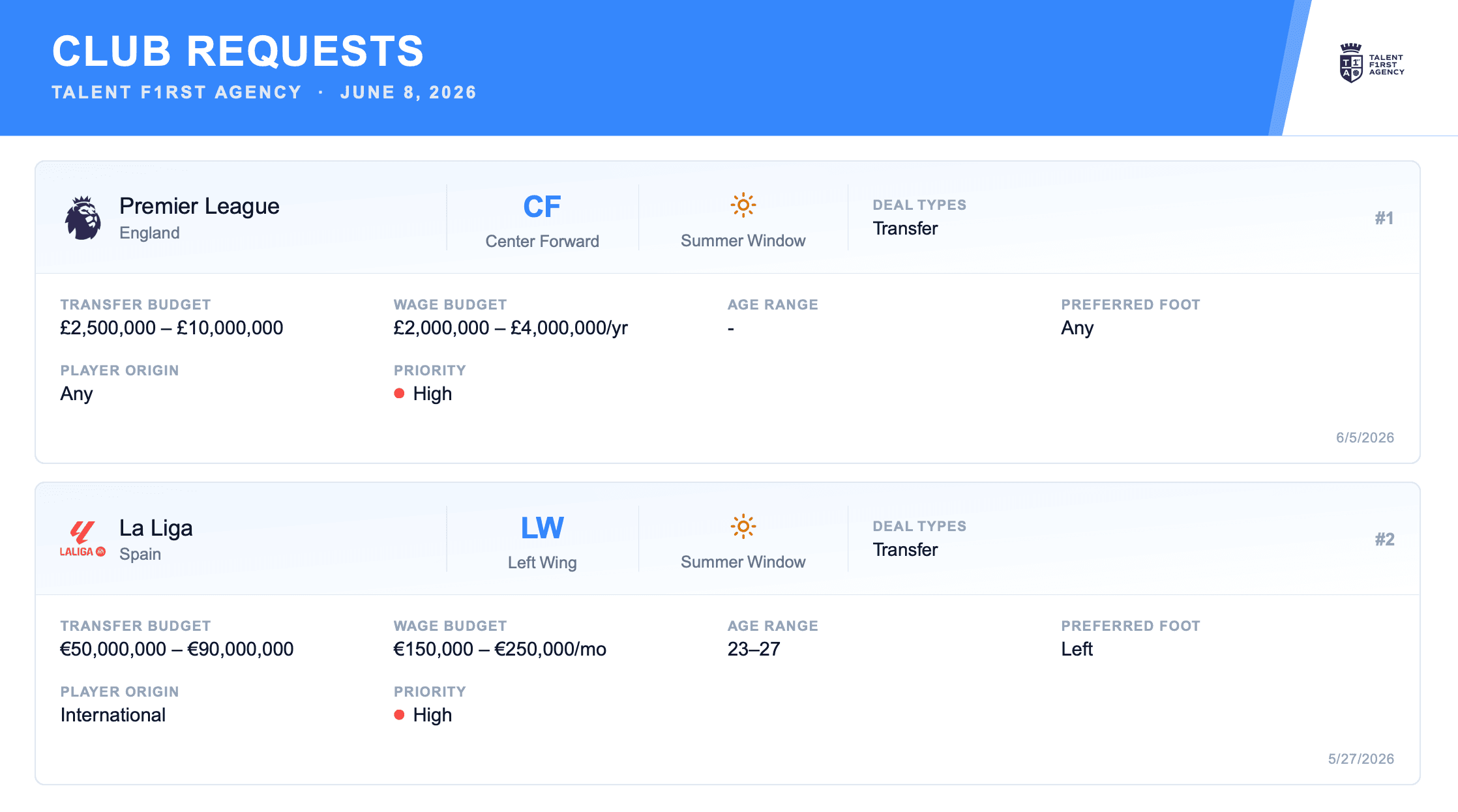
A PDF leaves ATHLIVO. Club requests are internal, and the table holds budgets, notes and assignees. Once the file is sent you can't change what's in it or take it back, so leave out any column you wouldn't want the recipient reading.
A PDF is a snapshot — it says what the requests said the moment you made it, and it won't update afterwards. If you want something that stays current, share players through a link instead. See Lists & Share Links.
Working a request
Open a request to see the brief and its matched players side by side.
Pitching a player. From the matched list, choose a player and either:
- Shortlist them
- You're considering them for this club.
- Pitch them
- You've actually put them forward. Attach the contact you pitched to and a note about how it went.
Each pitch then carries a status you keep updated:
| Status | Meaning |
|---|---|
| Shortlisted | On your list for this club, not yet put forward |
| Pending | Pitched, waiting to hear back |
| Accepted | The club is interested |
| Declined | The club passed |
Pitches show on the player's own profile too, under Deals, so you can see every club a player has been put to without opening each request.
Turning matches into a shared list. Select several matched players and add them to a list. From there you can send the club a share link showing exactly those players — see Lists & Share Links.
Notes, contacts and assignees. Each request keeps its own notes, the contacts at the club it relates to, and the colleagues assigned to it.
Archiving and deleting
Archive a request when it's done — filled, withdrawn, or the window closed. It disappears from your active view but keeps its full history, and you can restore it at any time. This is what you want in almost every case.
Delete removes it permanently, along with everything attached.
Two protections apply once you've pitched a player to a request:
- It can't be deleted. You'd be destroying the record of what you pitched and what the club said. Archive it instead.
- The brief locks. The criteria stop being editable, so the request stays a true record of what you actually pitched against.
Notifications
You'll be told when:
- A new club request is created
- A request is assigned to you
- A player is pitched to a request you're working on
Manage these in Settings → Notifications.
Your request limit
| Plan | Club requests |
|---|---|
| Free | 50 |
| Plus | Unlimited |
| Pro | Unlimited |
| Elite | Unlimited |
Over the limit, nothing is deleted — the oldest requests stay accessible and the rest are locked until you upgrade or remove some.
See plans and pricing for the full comparison.
Quick answers
Try it on your own roster
Free for 14 days, no card needed. Questions about anything on this page? Email us and a real person will answer.